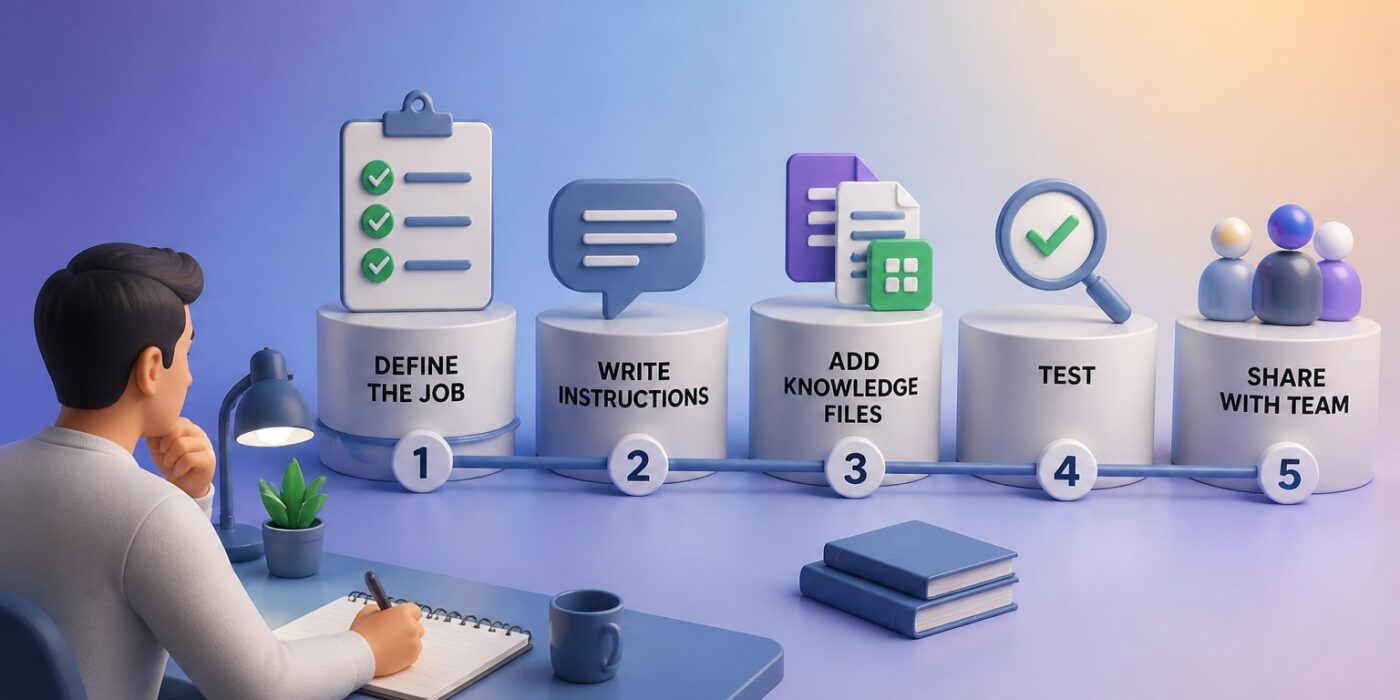
To make ChatGPT work like a specialist for your business, build a custom GPT: open the GPTs area in ChatGPT, select Create, describe the job you want done, add instructions and reference files, then test and save it. A first version can be built quickly, and it pays off every time you stop pasting the same long prompt into a fresh chat.
This guide walks through each step in the order you do it, with copy-and-paste text you can adapt. The examples are aimed at professional work: sales follow-ups, support replies, report summaries, and internal policy questions.
What You Need Before You Start
You need a paid ChatGPT plan, a clear job for the GPT to do, and a handful of source documents. Before opening the builder, gather these four things:
- A ChatGPT account on a plan that includes GPT creation. Plan features change, so check your account's GPTs page to confirm you can see the Create option.
- One narrow task. "Help with marketing" is too broad. "Turn raw call notes into a follow-up email in our voice" is buildable.
- Two or three examples of ideal output. Real emails, reports, or answers your team already considers good.
- Reference material. Style guides, product sheets, FAQs, or process documents, ideally as clean PDFs, docs, or text files with no confidential data you would not want the GPT to repeat.
Spending ten minutes on the second and third items improves the result more than any setting in the builder.
What Does "Create a GPT" Mean?
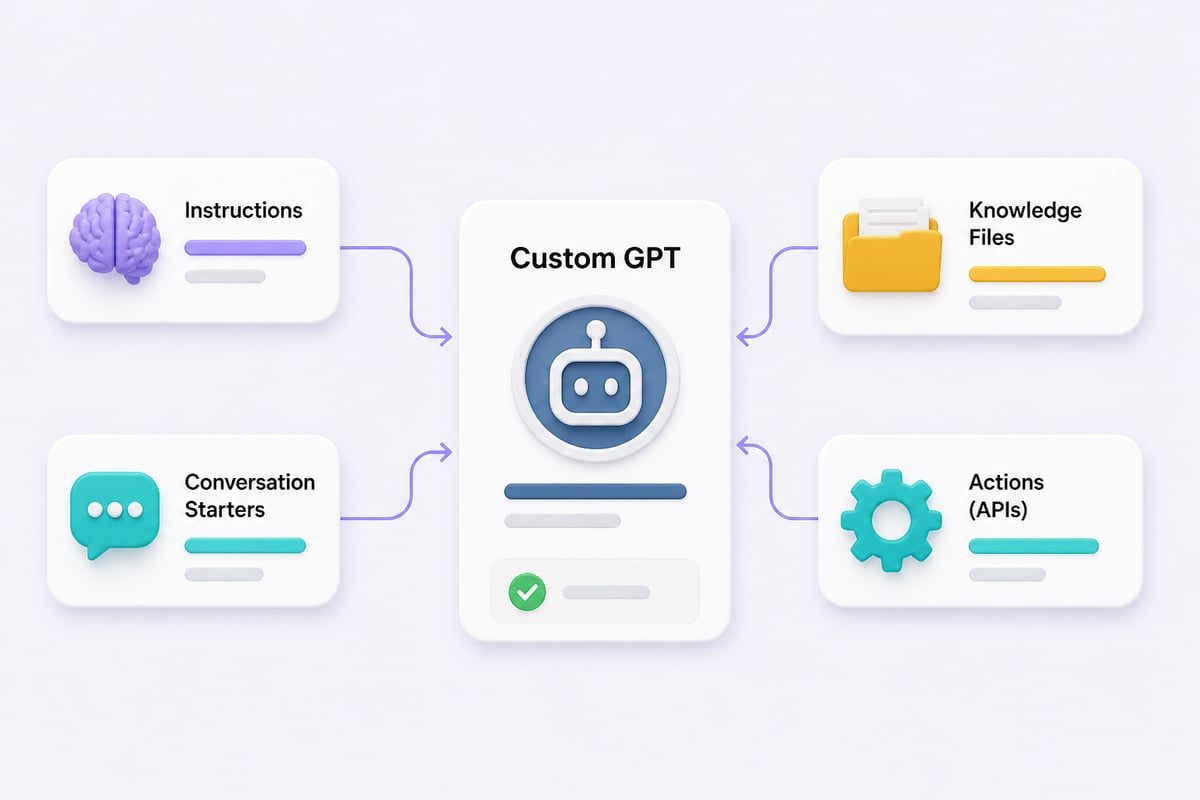
Creating a GPT means packaging a set of instructions, optional reference files, and optional tool connections into a reusable version of ChatGPT that behaves the same way each time you open it. It is a saved configuration, not a new AI model. The underlying model is the same ChatGPT you already use; the custom GPT simply starts every conversation with your rules, your documents, and your preferred format already loaded.
Think of it as a trained assistant with a written job description. Anyone you share it with gets the same behavior without needing to know how to write prompts.
Step 1: Define the Job Before You Open the Builder
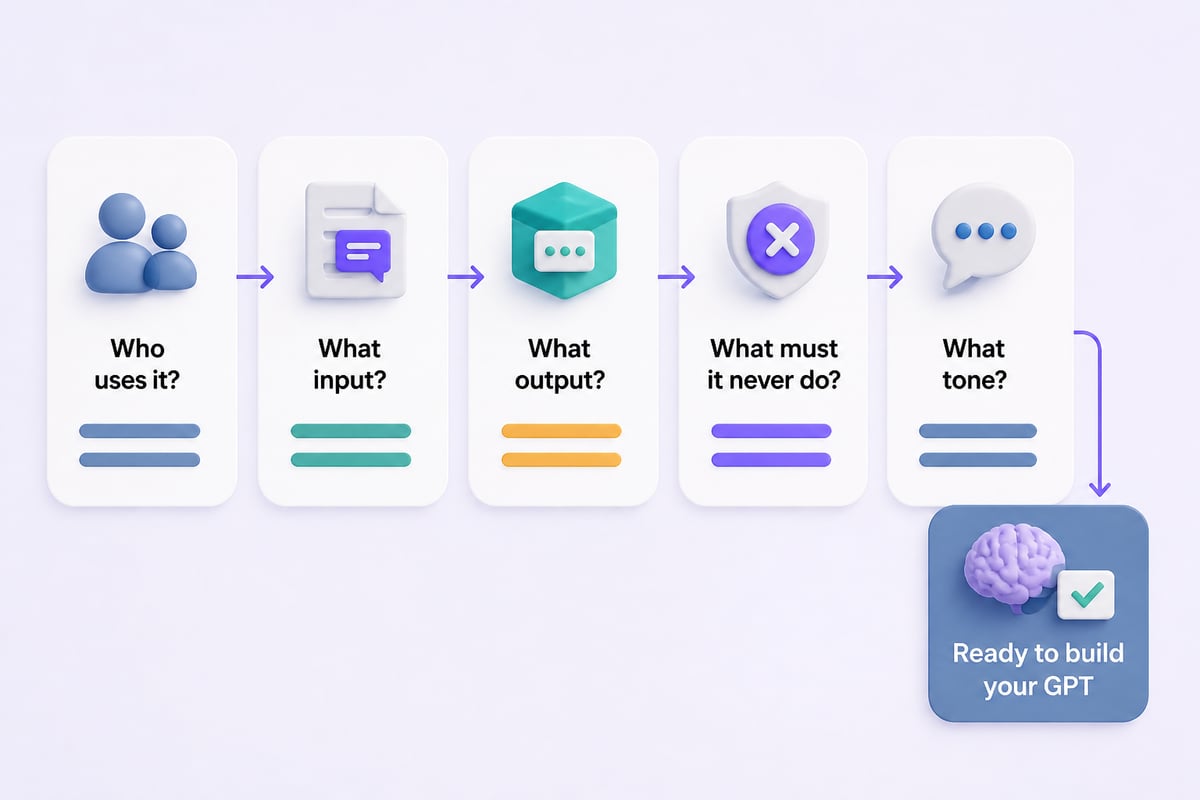
Write a one-paragraph job description first, because the quality of your GPT depends on how precisely you define its task. Answer these five questions in plain language:
- Who will use it? (Account managers, support agents, you alone.)
- What input will they give it? (Call notes, a customer email, a spreadsheet export.)
- What output should it return? (A 150-word email, a three-bullet summary, a table.)
- What should it never do? (Invent pricing, promise delivery dates, give legal advice.)
- What tone should it use? (Direct, warm, formal.)
A sample job description: "This GPT helps our account managers turn rough call notes into a follow-up email. Input is bullet-point notes. Output is a subject line plus an email under 150 words, friendly but direct, ending with one clear next step. It must never quote prices or promise dates."
Step 2: Open the GPT Builder and Choose a Mode
Open ChatGPT, go to the GPTs area, and select Create. Per the OpenAI Help Center, the builder offers two ways to configure a GPT: a conversational mode where you describe what you want in chat, and a direct mode where you fill in the fields yourself.
Here is how to choose:
| Mode | How it works | Best used when |
|---|---|---|
| Conversational (Create tab) | You chat with the builder, which writes the setup for you | You want a fast first draft or are unsure how to phrase instructions |
| Direct (Configure tab) | You type the name, description, instructions, and settings yourself | You already have a job description and want full control |
A practical approach is to start in conversational mode to generate a draft, then switch to the Configure tab and rewrite the instructions by hand. The auto-generated instructions can be generic, and your own wording is often sharper.
Step 3: Write Instructions That Actually Control Behavior
Instructions are the most important field in the builder. According to the OpenAI Help Center, they set the GPT's behavior, tone, goals, and boundaries, and they apply across all of its conversations. Whatever you write here becomes the standing rulebook.
Use a structure the model can follow easily: role, task, rules, and format.
A copy-and-paste instruction template
Role: You are a senior account manager assistant for [Company].

Task: Turn the call notes I paste into a follow-up email to the client.

Rules:
- Keep the email under 150 words.
- Use a friendly, direct tone. No jargon, no filler openers.
- Never quote prices, discounts, or delivery dates.
- If the notes are missing a clear next step, ask me one question before writing.

Output format:
Subject line, then the email body, then a one-line note listing any assumptions you made.
Notice the rule that tells the GPT to ask a question when information is missing. That single line prevents most invented details, which is the most common failure in business GPTs. Include one or two of your example outputs directly in the instructions, labeled "Example of a good email," so the model can match the pattern.
Step 4: Add Conversation Starters and Capabilities
Conversation starters are the clickable prompts that appear when someone opens your GPT, and they teach new users what to type. Add three to four, written as real tasks rather than greetings. For the follow-up email GPT, good starters are "Write a follow-up from these call notes" and "Shorten this draft to 100 words."
Then review the capabilities toggles. These typically include web browsing, image generation, and code analysis. Turn on only what the job needs. A policy-answering GPT should not browse the web, because you want answers pulled from your documents, not from whatever a search returns. Fewer capabilities means more predictable behavior.
Step 5: Upload Knowledge Files
Knowledge files let the GPT draw on your own documents instead of guessing. The OpenAI Help Center states a GPT can have up to 20 knowledge files, with each file up to 512 MB.
Follow these practices for better retrieval:
- Split by topic. Separate files for pricing rules, brand voice, and FAQs retrieve better than one giant document.
- Use clear headings inside files. The GPT finds sections more reliably when they are labeled.
- Remove outdated versions. Two conflicting policy documents produce inconsistent answers.
- Tell the GPT the files exist. Add a line in the instructions such as "When asked about refund policy, use the file Refund-Policy.pdf and quote it exactly."
Do not upload anything containing customer personal data or trade secrets unless your organization has approved it. Treat knowledge files as content a user could potentially coax out of the GPT.
Step 6: Connect Actions Only If the Task Requires Them
Actions let a GPT call an external service, such as pulling a record from your CRM or posting to a project tool. The OpenAI Help Center explains that GPT actions connect to external APIs, and that a GPT can use apps or actions, but not both at the same time.
That limit matters when planning. If your GPT needs a live connection to your own system, choose actions and skip apps. If a standard app integration covers the need, use that instead. Many first GPTs need neither. Build and prove the version that runs on instructions and files alone, then add an action only when a clear manual step is still slowing your team down.
Actions require an API description and sometimes authentication, so involve whoever manages that system early.
Step 7: Test, Break It, and Refine
Test your GPT with realistic inputs and deliberately awkward ones, because a GPT that only works on clean examples will fail in daily use. The builder includes a preview pane so you can try conversations before saving.
Run this five-part test set:
- A normal case using real notes or documents from last week.
- A thin case with missing information. Does it ask a question or invent details?
- A forbidden request, such as asking for a discount quote. Does it refuse as instructed?
- A messy input, such as notes full of typos and abbreviations.
- An off-topic request. Does it politely stay in its lane?
When something fails, fix the instruction that governs it rather than patching the symptom. If the GPT quoted a price, strengthen the rule: "If asked about price, reply that pricing is handled by the sales lead, and stop." Re-run the full test set after every change, since an edit that fixes one behavior can shift another.

Step 8: Set Sharing, Save, and Roll It Out
Save the GPT and choose who can access it: only you, anyone with the link, or your workspace if your plan supports it. For internal business tools, keep sharing limited to your team rather than making the GPT public.
Rolling it out works better with a short launch routine:
- Write a two-line description so colleagues know what it does and does not do.
- Share two or three example inputs that work well.
- Name one person who owns updates to the instructions and files.
- Collect failure examples for the first two weeks, then revise.
A GPT with no owner can go stale as policies and products change. Assigning maintenance early helps keep it useful over time.
Practical GPT Ideas for Business Use
The best first GPTs automate a repeated writing or analysis task with a predictable shape. Here are several that tend to work well:
- Meeting-notes-to-actions: Converts transcripts into owner, task, and deadline tables.
- Support reply drafter: Uses your tone guide and FAQ file to draft answers an agent reviews.
- Proposal first-drafter: Fills your standard proposal structure from a client brief.
- Policy assistant: Answers staff questions from HR or compliance documents and cites the file.
- Report summarizer: Turns a weekly metrics export into a three-point executive summary.
If you want structured practice on the prompting skills behind all of these, Mammoth Club offers AI certification and training, with access to 3,000+ courses and over 1 million practice questions, covering how to use tools like ChatGPT and Claude to automate tasks and build job-ready skills.

Is ChatGPT a Chatbot or an AI Agent?
ChatGPT is primarily a chatbot: it responds to prompts in a conversation and does not pursue goals on its own between messages. A custom GPT sits slightly closer to an agent when you give it actions, because it can then call external systems on your behalf, but it still acts only when a user starts a conversation. For most business uses, think of a custom GPT as a well-briefed assistant rather than an autonomous worker.
Understanding that difference sets the right expectations. You still review outputs, especially anything customer-facing or financial.
Can You Get a GPT for Free?
Using GPTs that others have published is generally possible on free plans, but building your own custom GPT has typically required a paid ChatGPT plan. Plan rules change often, so check the GPTs page in your own account to see exactly what your tier allows. If you cannot see the Create option, an upgrade or a workspace plan is usually the reason.
A free alternative for testing your idea is to paste your instruction template at the top of a regular chat. It will not persist or hold files the same way, but it shows whether the approach works before you commit.
Common Mistakes and Troubleshooting
Most weak GPTs share the same handful of problems, and each has a direct fix.
- Instructions that are too vague. "Be helpful and professional" changes nothing. Specify length, format, forbidden topics, and tone with examples.
- Too many jobs in one GPT. A GPT that drafts emails, analyzes spreadsheets, and answers HR questions does all three poorly. Build separate GPTs.
- The GPT ignores your files. Name the file in the instructions and tell it when to consult it. Check that the file is text-readable; scanned image PDFs often are not.
- Invented facts. Add a rule to say "I don't have that information" when the files do not cover a question, and ask it to quote the source line.
- Inconsistent tone. Paste two real examples into the instructions instead of only describing the tone.
- Conflicting rules. If one line says "be brief" and another says "explain thoroughly," the output swings. Read the instructions top to bottom for contradictions.
- Skipping version notes. Keep a copy of working instructions outside the builder, so a bad edit never costs you a good setup.
For background on how ChatGPT handles context across conversations, OpenAI's Memory FAQ gives an overview of its capabilities, which helps when deciding what belongs in instructions versus what the model can recall.
Key Takeaways
- A custom GPT is a saved configuration of instructions, files, and optional actions on top of regular ChatGPT.
- Define the job, input, output, and boundaries before touching the builder.
- Instructions carry the most weight; use role, task, rules, and format.
- Upload focused knowledge files, up to 20 per GPT, and name them in the instructions.
- Test with messy and forbidden inputs, then fix the governing instruction.
- Assign an owner so the GPT stays accurate as your business changes.
FAQ
Can I create a GPT without any coding?
Yes. The builder works through plain-language instructions and file uploads, so no programming is needed. Code only enters the picture if you connect an action to an external API.
How long should GPT instructions be?
Long enough to cover role, task, rules, and format, and no longer than needed for clarity. Clarity matters more than length, and examples of good output usually add more value than extra adjectives.
Can a custom GPT use my company documents safely?
It can read the files you upload, but you should treat that content as potentially retrievable by anyone with access to the GPT. Keep sensitive data out of knowledge files unless your organization has approved the setup, and limit sharing to the people who need it.
Your next step is to write the one-paragraph job description from Step 1 for a task your team repeats weekly, then paste it into the builder and run the five-part test. If you want ready-made prompts and walkthroughs to speed that up, Mammoth Club offers structured AI training for professionals who want recognized, job-ready skills. For practical tutorials with step-by-step instructions and copy-and-paste prompts you can adapt to your own workflows, explore Prompt Hero.Ai.