
A good Google AI tutorial starts with one skill: writing clear prompts for Gemini, Google's AI assistant, using four building blocks (persona, task, context, and format) and then refining the output with follow-up requests. Learn that pattern once and you can apply it to emails, reports, spreadsheets, and presentations without taking a full course.
This guide walks through the pattern step by step. You'll get copy-and-paste prompts for common business tasks, learn where Gemini fits inside Google Workspace, and see how to fix weak results. The same habits carry over to ChatGPT and Claude, so the skills transfer.
What "Google AI" actually means for a working professional
For most professionals, "Google AI" means Gemini, the assistant available in its own app and built into Gmail, Docs, Sheets, Slides, and Vids. You do not need to learn machine learning to use it well.
Google offers AI in several layers, and knowing which one you need saves time:
- Gemini app (web and mobile): a chat assistant for writing, brainstorming, learning, and planning. The mobile version accepts text, voice, photos, and camera input, according to Gemini Apps Help.
- Gemini in Workspace: the same assistant inside your documents, spreadsheets, and slides, where it can work with your own files.
- Developer tools (AI Studio, Vertex AI): for people building applications. Most business users can skip these.
If your goal is to write faster, summarize long material, or organize information, the first two layers cover nearly everything. The rest of this tutorial focuses on them.
The four-part prompt framework
A strong Gemini prompt contains up to four elements: persona, task, context, and format. Google's own prompt framework names these four and says that using some of them can improve your results, per Google Docs Help.
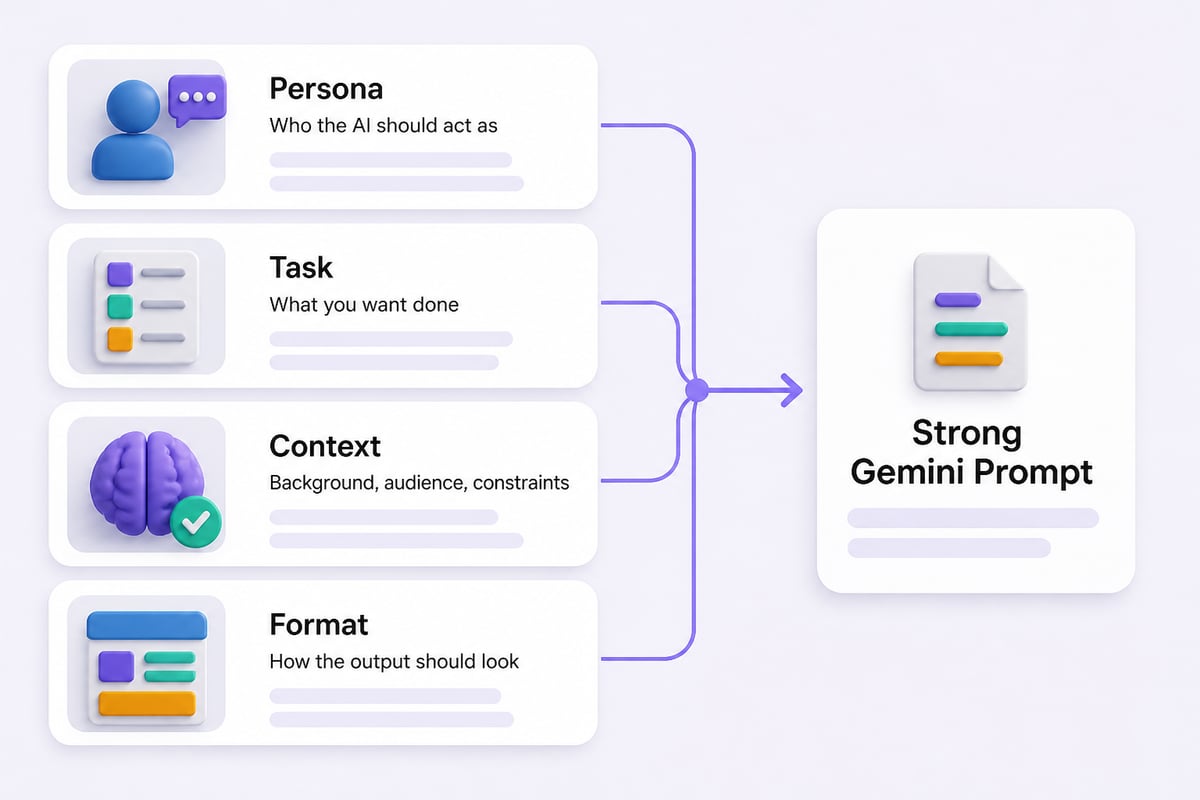
Here is what each element does:
- Persona: tells the AI whose perspective to take. "You are a senior operations manager" produces different language than "You are a customer support lead."
- Task: the specific action. Use a strong verb: draft, summarize, compare, rewrite, classify.
- Context: the facts the model cannot guess, such as audience, goal, tone, deadlines, and source material.
- Format: the shape of the answer, such as a table, five bullets, a 150-word email, or a numbered plan.
You rarely need all four. A quick rewrite might need only task and format. A client-facing proposal usually needs all of them.
A weak prompt versus a strong one
Weak: "Write an email about the project delay."
Strong: "You are a project manager writing to a client. Draft an email explaining that the website launch is moving from March 4 to March 18 because of a delayed vendor integration. Keep the tone apologetic but confident, offer a mid-point check-in call, and keep it under 150 words."
The second prompt names a persona, a task, context, and a length limit. The output needs far less editing.
Step-by-step: your first prompt in Google Docs
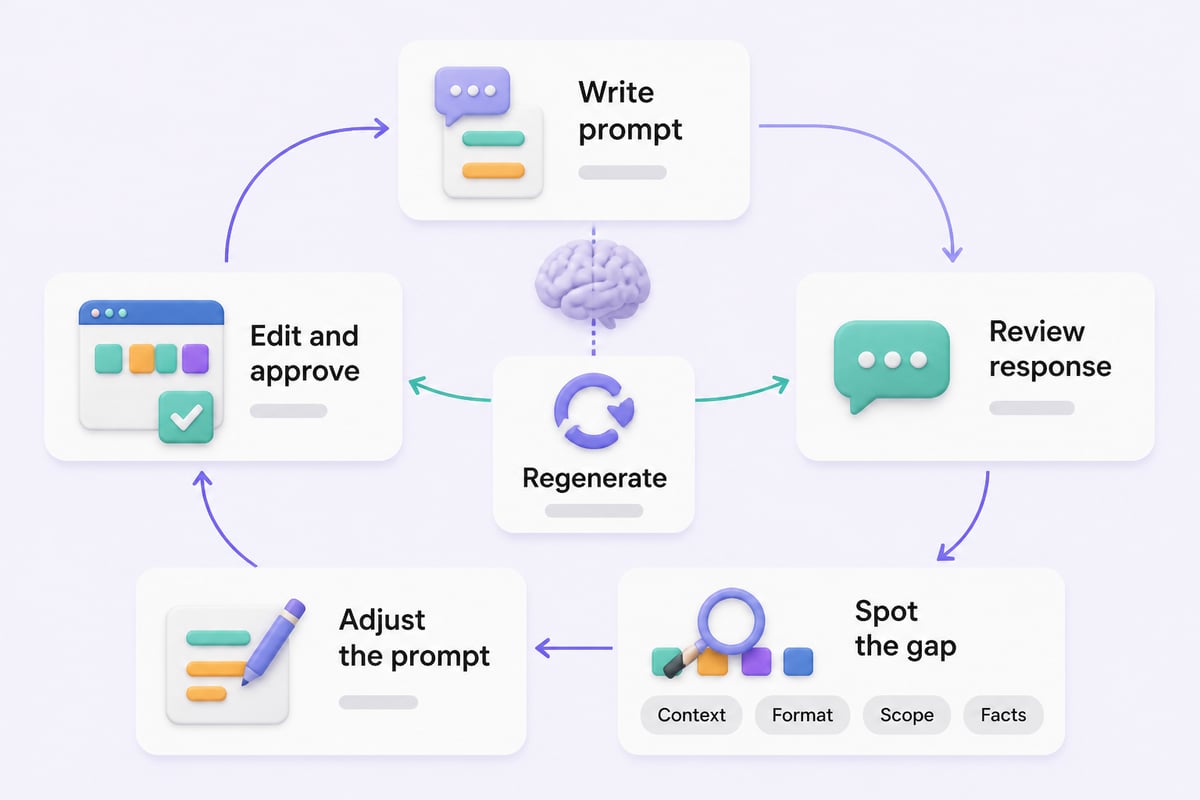
Prompting Gemini inside Google Docs follows a simple loop: write the prompt, review the response, refine it if needed, and insert it into your document, as described in Google Workspace Help.
Try this workflow with a real task:
- Open a blank Google Doc and open the Gemini panel.
- Paste a prompt such as: "You are a business analyst. Write a one-page summary of the pros and cons of moving our weekly status meeting to an asynchronous written update. Audience: department heads. Format: short intro, two bullet lists, one recommendation."
- Read the draft critically. Check facts, tone, and anything that sounds generic.
- Refine with a follow-up: "Make the recommendation more cautious and add one risk about team morale."
- Insert the result into the document and edit it in your own voice.
Step 3 matters most. Gemini produces fluent text whether or not it is accurate, so you remain responsible for the final version.
Prompts you can copy for real business tasks
The prompts below follow the four-part framework. Replace the bracketed text with your own details.
Email and communication
Reply to a difficult customer message
"You are a customer success manager. Draft a reply to the message below. Acknowledge the frustration, explain [the cause] in plain language, offer [the fix and timeline], and close with a specific next step. Keep it under 130 words and avoid corporate jargon. Message: [paste message]"
Summarize a long thread
"Summarize the email thread below for an executive who has 60 seconds. Format: one-sentence situation, three bullets of decisions made, and a list of open questions with owners."
Reports and documents
Turn rough notes into meeting minutes
"You are an executive assistant. Convert these notes into meeting minutes. Format: attendees, decisions, action items as a table with owner and due date. Notes: [paste notes]"
Draft a project brief
"Act as a senior project manager. Write a one-page project brief for [project name]. Include objective, scope, out of scope, key milestones, risks, and success metrics. Audience: leadership team. Use headings and short bullet points."
Spreadsheets and data
Plan a formula or analysis
"I have a spreadsheet with columns for Date, Region, Product, and Revenue. Explain, step by step, how to calculate monthly revenue by region and flag any month where revenue dropped more than 10% from the previous month."
Ask for the explanation, not just the formula. You will catch mistakes sooner and learn the logic.
Presentations
Build a slide outline
"Create a 7-slide outline for a 15-minute update to the sales team on Q4 pipeline health. For each slide give a title, the one key message, and a suggested visual. Tone: direct and practical."
How to give Gemini your own files and context
Gemini produces better work when it can see your material, and in Docs, Sheets, Slides, and Vids you can pull in relevant files by typing "@" or entering a file name, according to Google Docs Help.
That turns generic prompts into specific ones. Instead of pasting a pricing sheet into a chat, you can reference it directly:
"Using @Q4 Pricing Sheet, write three bullet points a sales rep can use to explain the new enterprise tier to a skeptical buyer."
Two cautions apply. First, check your organization's data policies before feeding in client or confidential documents. Second, verify that Gemini actually used the right file by asking it to name the source of each claim.
Break big jobs into smaller prompts
Complex tasks work better when split into separate prompts, and Google advises exactly this approach for helping Gemini respond usefully, per Google Workspace Help.
Say you need a competitor analysis. One giant prompt asking for everything tends to produce shallow results. A sequence works better:
- "List the five factors buyers in [industry] weigh most when choosing a vendor."
- "Build a table comparing [our company] and [Competitor X] on those five factors, based on the notes I paste below."
- "Identify the two factors where we are weakest and suggest one practical response for each."
- "Turn the result into a half-page summary for the leadership team."
Each step is checkable. If step 2 goes wrong, you fix it before it contaminates step 4. This staged habit is the single biggest quality upgrade most professionals can make.

Refining results with follow-up prompts
Treat the first response as a draft. Google recommends natural language, relevant context, and follow-up prompts to refine results, as laid out in Google Docs Help.
Follow-ups that work reliably:
- Adjust tone: "Make this warmer and less formal."
- Cut length: "Shorten to 100 words without losing the deadline."
- Change structure: "Convert this into a table."
- Challenge it: "What would a skeptical CFO object to in this proposal?"
- Check it: "List any claims here that I should verify before sending."
The last two are underused. Asking the model to critique its own output often surfaces weak arguments and unsupported claims before a colleague does.
Diagnosing a bad result
When output disappoints, the cause is usually one of four things. Match the symptom to the fix:
| Symptom | Likely cause | Fix |
|---|---|---|
| Generic, bland text | Missing context | Add audience, goal, and a sample of your preferred style |
| Wrong format | No format instruction | State length, structure, and layout explicitly |
| Rambling or off-topic | Task too broad | Split into smaller prompts |
| Confident but wrong facts | Model filled a gap | Supply source text and ask it to cite from it only |
Google AI vs. ChatGPT and Claude: does the skill transfer?
Largely yes. The persona, task, context, and format pattern is a useful starting point across Gemini, ChatGPT, and Claude, so learning it once pays off across tools. Differences show up in the surrounding features rather than the prompting itself.
- Gemini is strongest when your work already lives in Google Workspace, since it can reference your Docs, Sheets, and Slides directly.
- ChatGPT and Claude are popular for long-form drafting, analysis of pasted documents, and custom workflows, and many professionals keep more than one open.
A practical habit: run an important prompt in two tools and compare. Disagreement between them is a useful signal that a claim needs checking. If you want a structured path across tools, the Mammoth Club AI certification and training offers courses and practice questions covering how to use ChatGPT and Claude to automate tasks and build job-ready skills.

Building a personal prompt library
A prompt library is a saved collection of your best prompts, and it is the fastest way to turn occasional AI use into a repeatable work habit. Every time a prompt produces a result you would send without editing, save it.
A simple structure:
- Name: "Client delay email"
- Prompt text with bracketed placeholders
- Notes: what worked, what to adjust
- Tool: Gemini, ChatGPT, or Claude
Store it in a Google Doc or Sheet your team can edit. Teams that share prompts standardize quality and cut the time new hires spend learning what works. For more ready-made examples, browse this AI prompt tutorial and the broader AI tutorial from Prompt Hero.Ai, and see the Notion AI tutorial if your notes live outside Google.
Common mistakes and how to avoid them
Most failed prompts trace back to a short list of avoidable habits:
- Pasting confidential data without checking policy. Confirm what your organization allows first.
- Accepting the first draft. Always refine at least once.
- Skipping verification. Check names, numbers, dates, and quotes against the source.
- Writing vague goals. "Make it better" gives the model nothing to aim at. Say what better means: shorter, firmer, friendlier.
- Overloading one prompt. Split it up.
Google's own resources on prompting Gemini offer more examples and guidance once you have the basics down.
Key takeaways
- Gemini is the core of Google AI for business users, available in its own app and inside Workspace.
- Build prompts from persona, task, context, and format.
- Split complex jobs into separate, checkable prompts.
- Treat every first response as a draft and refine with follow-ups.
- Save prompts that work and share them with your team.
- Verify facts before anything leaves your desk.
FAQ
Is there a free way to start with Google AI?
Gemini offers a free tier through the Gemini app, though features and limits change. Check Gemini Apps Help for current availability and controls.
How long does it take to get good at prompting?
Many people notice improvement quickly by adding context and format to every prompt. Fluency across many task types takes longer, and a saved prompt library speeds it up.
Do I need coding skills?
No. Everything in this tutorial uses plain language. Coding only matters if you are building applications on Google's developer platforms.
Can Gemini replace my own review?
No. It drafts quickly, but it can state wrong facts with confidence. You are the editor and the accountable party.
Which prompt element matters most?
Context. Persona and format polish the result, but missing context is the most common reason for generic output.
Pick one recurring task from this week, such as a status email or meeting summary, and rewrite it as a four-part prompt in Gemini today. When you are ready to go further, Mammoth Club offers structured AI certification and training, and Prompt Hero.Ai publishes step-by-step tutorials with copy-and-paste prompts and real examples built for professionals using ChatGPT, Claude, and other tools.