
Notion AI has transformed how professionals organize information, write content, and manage projects within their workspaces. This notion ai tutorial will guide you through practical applications of Notion's artificial intelligence features, from basic writing assistance to advanced automation workflows. Whether you're managing a business, organizing personal projects, or collaborating with a team, understanding how to leverage Notion AI can dramatically reduce repetitive tasks and enhance your productivity in ways that weren't possible just a few years ago.
Understanding Notion AI's Core Capabilities
Notion AI operates as an integrated assistant within your Notion workspace, accessible through any page, database, or document. The AI responds to natural language prompts and can perform dozens of specialized tasks without requiring you to leave your current context.
The foundational capabilities include writing assistance, content transformation, and information extraction. When you're drafting a document, Notion AI can continue your thoughts, improve your writing style, or completely rewrite sections for different audiences. This integration means you're not copying text between applications or breaking your workflow to get AI assistance.
Activating Notion AI in Your Workspace
Before diving into specific use cases, you'll need to activate Notion AI for your workspace. Navigate to Settings & Members, then select the Billing tab where you'll find Notion AI options. The service operates on a per-member subscription model, meaning each team member who wants AI access requires their own subscription.
Once activated, you'll notice a new "Ask AI" option appearing throughout your workspace. This prompt appears when you:
- Create a new line and press Space
- Highlight existing text and select "Ask AI" from the menu
- Click the AI button in your toolbar
- Type a forward slash (/) and select AI options from the command menu
The official Notion guide for AI-powered docs provides additional context on setup and initial configuration.

Writing and Content Creation with Notion AI
This section of our notion ai tutorial focuses on practical writing applications. Notion AI excels at generating first drafts, transforming existing content, and refining your message for specific audiences.
Generating Content from Scratch
Start by opening a blank page and pressing Space to bring up the AI menu. You'll see several writing templates:
- Brainstorm ideas: Generate creative concepts for projects, campaigns, or content topics
- Blog post: Create structured articles with introductions, body sections, and conclusions
- Outline: Develop hierarchical frameworks for presentations, reports, or complex documents
- Social media post: Craft platform-specific content optimized for engagement
- Press release: Generate professional announcements following industry standards
- Creative story: Write narratives, scenarios, or fictional content
Each template accepts additional context through prompts. For example, instead of simply selecting "blog post," type "Write a blog post about quarterly sales strategies for SaaS companies targeting mid-market customers." The more specific your prompt, the more relevant your output becomes.
Transforming Existing Text
Highlight any text block in your Notion page to reveal transformation options. These tools prove particularly valuable when repurposing content for different platforms or audiences.
| Transformation Type | Use Case | Example Application |
|---|---|---|
| Make longer | Expand brief notes into full paragraphs | Converting meeting bullet points into detailed summaries |
| Make shorter | Condense lengthy text while preserving key points | Creating executive summaries from reports |
| Change tone | Adjust formality, enthusiasm, or professionalism | Adapting internal communications for client presentations |
| Simplify language | Reduce complexity for broader audiences | Making technical documentation accessible to non-experts |
| Fix spelling & grammar | Correct errors and improve clarity | Polishing rough drafts before sharing |
The transformation happens instantly, and Notion presents the result as a suggestion you can accept, reject, or modify further. This approach preserves your original text while experimenting with different versions.
Database Management and Automation
Databases represent where Notion AI delivers substantial productivity gains. Traditional database management requires manual data entry, categorization, and analysis. Notion AI automates much of this work through intelligent suggestions and bulk operations.
Auto-filling Database Properties
When creating database entries, Notion AI can automatically populate properties based on existing content. Consider a project management database with properties for status, priority, deadline, and assigned team member. As you add a new project titled "Redesign marketing website for Q3 launch," Notion AI can:
- Suggest "In Progress" for status based on the word "redesign"
- Recommend "High" priority due to "Q3 launch" indicating a time-sensitive project
- Propose a deadline aligned with Q3 end dates
- Identify relevant team members if your workspace contains previous marketing projects
This feature becomes more accurate as your database grows and AI learns your organizational patterns. The comprehensive guide on everything you can do with Notion AI explores these database features in depth.
Extracting Information from Meeting Notes
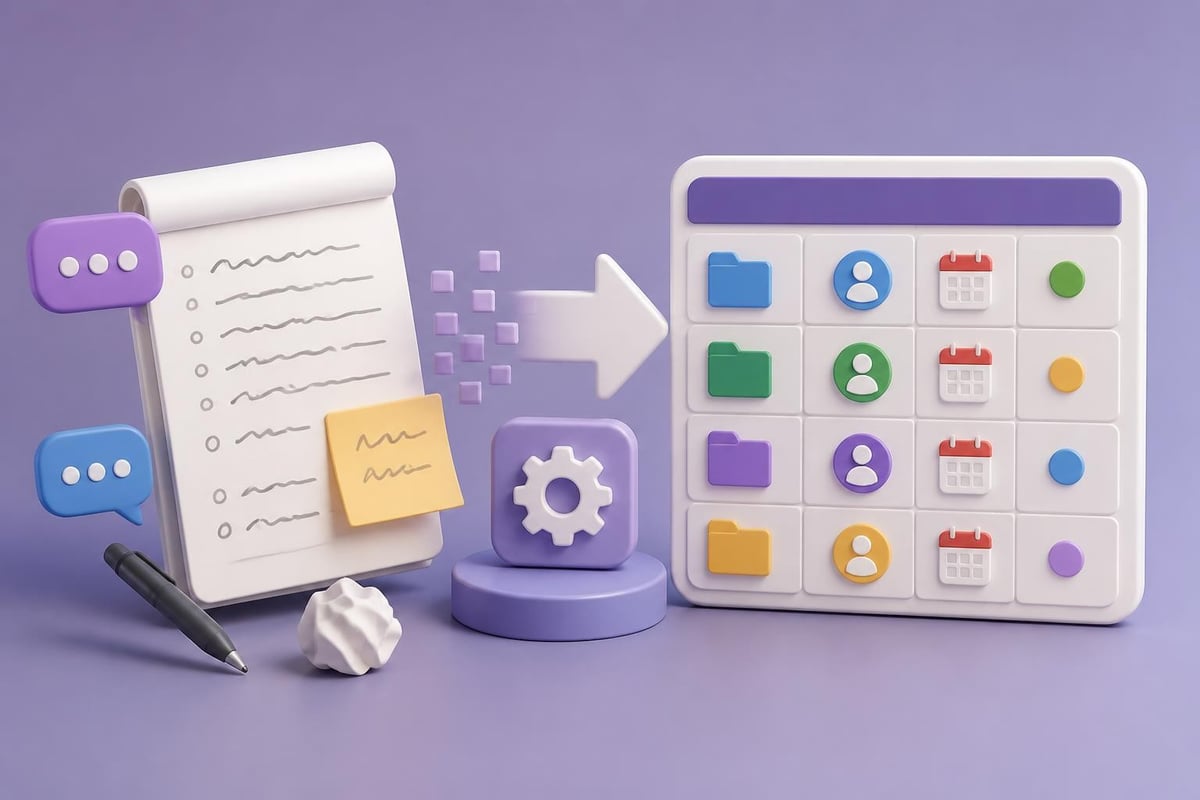
Many professionals struggle converting unstructured meeting notes into actionable database entries. Notion AI solves this through information extraction. After capturing meeting notes in a document, you can:
- Create a new database view for action items
- Use Notion AI to "find action items" within your notes
- Automatically generate database entries with assignees and due dates
- Link these entries back to the original meeting document
This workflow transforms passive notes into active project management without manual transcription. For teams managing multiple projects, this single feature can save hours weekly.
Advanced Prompting Techniques for Better Results
The quality of Notion AI output directly correlates with prompt specificity. This notion ai tutorial section covers advanced prompting strategies that professionals use to maximize AI effectiveness.
The Context-Task-Format Framework
Structure your prompts using three components:
Context: Provide background information that shapes AI understanding. Instead of "Write a product description," try "Our company sells project management software to construction firms who struggle with subcontractor coordination."
Task: Clearly state what you want the AI to accomplish. "Create a product description that emphasizes real-time collaboration features and mobile accessibility for field workers."
Format: Specify the structure or style you need. "Use three short paragraphs, include two bullet point lists of key features, and write in a professional but conversational tone targeting busy project managers."
Combined prompt: "Our company sells project management software to construction firms who struggle with subcontractor coordination. Create a product description that emphasizes real-time collaboration features and mobile accessibility for field workers. Use three short paragraphs, include two bullet point lists of key features, and write in a professional but conversational tone targeting busy project managers."
This structured approach consistently produces superior results compared to simple, vague prompts. As you explore more AI tutorials and practical applications, you'll discover how proper prompting techniques transfer across different AI platforms.
Iterative Refinement Process
Rarely does AI produce perfect output on the first attempt. Professional users follow an iterative refinement process:
- Generate initial output with a detailed prompt
- Identify specific weaknesses in tone, structure, or content
- Modify the prompt to address those weaknesses
- Request revision using the improved prompt
- Compare versions to determine which elements work best
For example, if your first marketing email draft sounds too formal, don't start over. Highlight the text, select "Change tone," and specify "more conversational and friendly while maintaining professionalism." Notion AI adjusts only the tone while preserving your content structure and key messages.
Organizing Daily Workflows with AI Assistance
Beyond individual tasks, Notion AI helps orchestrate entire workflows. This portion of the notion ai tutorial demonstrates how to integrate AI throughout your daily operations.
Morning Planning Routine
Create a daily dashboard page with a simple prompt: "Review my upcoming week and suggest priorities based on deadlines, meeting schedules, and project complexity." Notion AI analyzes your workspace databases, calendar integrations, and recent activity patterns to provide personalized recommendations.
You can enhance this routine by:
- Asking AI to "summarize yesterday's completed tasks and identify unfinished work"
- Requesting "a prioritized list of today's tasks organized by urgency and importance"
- Getting "suggested time blocks for deep work based on my meeting schedule"
The guide on organizing everyday life with Notion AI offers additional workflows for personal productivity.
Content Creation Workflows
Writers and content creators benefit from establishing AI-assisted workflows that move from ideation through publication:
- Ideation phase: Use AI to brainstorm 20 content topics relevant to your audience
- Research phase: Ask AI to generate questions your content should answer
- Outlining phase: Create structured outlines with main points and supporting details
- Drafting phase: Generate section-by-section content with specific prompts
- Editing phase: Use AI to improve clarity, fix grammar, and adjust tone
- Repurposing phase: Transform long-form content into social posts, emails, or summaries
This systematic approach ensures consistency while dramatically reducing the time required to produce quality content. The comprehensive productivity guide from InsightCrunch demonstrates how professionals implement these workflows in real business contexts.

Real-World Business Applications
Understanding theory matters less than implementing practical solutions. This section of the notion ai tutorial presents specific business scenarios where Notion AI delivers measurable results.
Customer Support Documentation
Support teams often maintain extensive knowledge bases that require constant updates. Notion AI streamlines this process through several mechanisms:
- FAQ generation: Paste customer email threads and ask AI to "extract common questions and generate clear answers"
- Article updates: When products change, highlight outdated sections and prompt "update this content to reflect the new features while maintaining the same structure"
- Multilingual support: Generate translated versions of documentation by requesting "translate this article to Spanish while preserving formatting and technical accuracy"
One customer success team reported reducing documentation maintenance time by 60% after implementing AI-assisted workflows for their Notion-based knowledge base.
Sales Proposal Development
Sales professionals spend significant time customizing proposals for different prospects. Notion AI accelerates this process while maintaining personalization. Create a proposal template database with properties for client industry, company size, pain points, and proposed solutions.
For each new prospect, Notion AI can:
- Generate customized executive summaries highlighting relevant case studies
- Adjust technical specifications based on company size and infrastructure
- Modify pricing presentations to emphasize value propositions most relevant to the prospect's industry
- Create implementation timelines accounting for typical deployment challenges in similar organizations
This approach combines the efficiency of templates with the effectiveness of fully customized proposals. For professionals looking to deepen their AI skills across multiple platforms, Mammoth Club’s AI certification program offers comprehensive training that builds on these foundational concepts with advanced techniques for various AI tools.

Project Management Enhancement
Project managers juggle multiple workstreams, stakeholder communications, and resource allocation decisions. Notion AI supports these responsibilities through intelligent assistance:
| Project Management Task | Notion AI Application | Time Saved |
|---|---|---|
| Status report generation | Summarize database entries into executive updates | 2-3 hours weekly |
| Risk identification | Analyze project notes for potential blockers | 1-2 hours weekly |
| Resource planning | Suggest team assignments based on skills and availability | 1-2 hours per project |
| Meeting preparation | Generate agendas from previous action items | 30 minutes per meeting |
| Documentation updates | Keep project wikis current with timeline changes | 1 hour weekly |
These time savings compound across multiple projects, enabling project managers to focus on strategic decisions rather than administrative overhead. The interactive Storylane tutorial provides hands-on experience with these project management applications.
Integrating Notion AI with Existing Tools
Notion doesn't exist in isolation. Most professionals use multiple productivity tools, and this notion ai tutorial addresses integration strategies that maximize value across your entire tech stack.
Email and Communication Integration
While Notion AI cannot directly access your email client, you can create powerful workflows by copying content between tools. When you receive a complex client email requiring a detailed response:
- Copy the email content into a Notion page
- Use AI to "analyze this email and identify key questions and concerns"
- Ask AI to "draft a professional response addressing each point"
- Review and personalize the AI-generated response
- Copy the final version back to your email client
This workflow proves particularly valuable for handling sensitive communications where you need thoughtful responses but face time constraints. Many professionals maintain a "Communications" database in Notion specifically for this purpose.
Calendar and Task Management Syncing
Notion offers native calendar views for database entries with date properties. Combine these with AI assistance to create intelligent task management:
- Import calendar events as database entries (manually or through automation tools)
- Use AI to "categorize these meetings by project and suggest pre-meeting preparation tasks"
- Ask AI to "identify scheduling conflicts and recommend resolution strategies"
- Request "post-meeting action item generation based on meeting titles and attendees"
Advanced users leverage automation platforms like Zapier or Make to automatically create Notion database entries from calendar events, then apply AI analysis to those entries.
Training Your Team on Notion AI
Organizations gain maximum value from Notion AI when entire teams adopt consistent practices. This final section of the notion ai tutorial covers training strategies for team-wide implementation.
Creating Internal AI Guidelines
Establish clear guidelines that help team members use AI effectively while maintaining quality standards:
- Approved use cases: List specific scenarios where AI usage is encouraged (draft generation, grammar checking, summarization)
- Review requirements: Specify which AI-generated content requires human review before publication
- Tone and style standards: Provide example prompts that produce brand-appropriate content
- Data sensitivity rules: Clarify what information should never be processed through AI
- Quality benchmarks: Define minimum standards for AI-assisted output
Document these guidelines in your Notion workspace where team members can easily reference them. Include example prompts and before/after comparisons showing effective AI usage.
Progressive Skill Development
Rather than overwhelming team members with all Notion AI capabilities at once, implement a progressive training approach:
Week 1: Basic writing assistance (grammar fixing, tone adjustment, content expansion)
Week 2: Content generation (brainstorming, outlining, first draft creation)
Week 3: Database automation (auto-fill properties, information extraction)
Week 4: Advanced prompting (context-task-format framework, iterative refinement)
Week 5: Workflow integration (connecting AI with existing processes)
Provide weekly challenges where team members practice specific skills on real work tasks. For example, "This week, use Notion AI to generate meeting agendas for all team meetings and share your results in our feedback channel." This practical application reinforces learning while delivering immediate value.
Measuring AI Impact
Track specific metrics to demonstrate ROI and identify improvement opportunities:
- Time saved on routine writing tasks (measured through before/after comparisons)
- Reduction in documentation maintenance hours
- Increase in content production without additional headcount
- Improvement in content quality scores (measured through stakeholder feedback)
- Acceleration of project delivery timelines
Create a simple dashboard in Notion that tracks these metrics monthly. Share results with leadership to justify continued investment in AI tools and training. The insights from TechRadar’s advanced Notion applications demonstrate how far organizations can push these capabilities.
Troubleshooting Common Challenges
Even experienced users encounter obstacles when working with Notion AI. Understanding common issues and their solutions prevents frustration and maintains productivity.
AI Responses Lack Specificity
Problem: Generated content feels generic and doesn't address your unique situation.
Solution: Enhance your prompts with specific details about your audience, context, and desired outcomes. Instead of "write a product description," use "write a 150-word product description for cybersecurity professionals evaluating SIEM solutions, emphasizing integration capabilities and compliance features."
Inconsistent Output Quality
Problem: Similar prompts produce wildly different quality levels.
Solution: Create a prompt library for frequently performed tasks. Test prompts multiple times, refine based on results, then save successful versions for repeated use. This standardization ensures consistency across team members.
AI Suggestions Don't Align with Brand Voice
Problem: Generated content sounds correct but doesn't match your organization's communication style.
Solution: Develop brand voice examples and include them in your prompts. "Write this announcement in our brand voice, which is professional yet approachable, uses active voice, avoids jargon, and includes occasional humor. Here's an example of our typical communication: [paste example]."
Database Auto-Fill Creates Errors
Problem: Notion AI suggests incorrect property values for database entries.
Solution: Provide more context in your database entry titles and descriptions. AI learns from patterns, so consistent naming conventions and detailed descriptions improve accuracy. Review and correct AI suggestions initially to establish better learning patterns.
For those seeking to expand their AI capabilities beyond Notion, exploring Midjourney tutorials and ChatGPT strategies can provide complementary skills that enhance your overall AI proficiency.
Advanced Features for Power Users
This notion ai tutorial concludes with advanced capabilities that distinguish power users from casual adopters. These features require deeper Notion knowledge but deliver exponential productivity gains.
Custom AI Workflows with Templates
Create reusable page templates that incorporate AI prompts at specific locations. For instance, a "Client Onboarding" template might include:
- Section 1: Client background (with prompt "Summarize this client's industry, challenges, and goals based on sales notes")
- Section 2: Proposed solution (with prompt "Generate a customized solution proposal addressing the challenges identified above")
- Section 3: Implementation timeline (with prompt "Create a phased implementation plan for the proposed solution")
When you duplicate this template for a new client, the AI prompts guide you through consistent, thorough onboarding while still allowing customization.
Linked Database AI Analysis
For organizations with complex relational databases, Notion AI can analyze connections and patterns across linked data. Create a database view showing all projects, their assigned resources, and current status. Ask AI to "identify resource allocation inefficiencies and suggest rebalancing strategies."
The AI considers relationships between databases (projects linked to people, people linked to skills, projects linked to deadlines) and provides insights humans might miss when viewing data in isolation. This capability resembles business intelligence tools but operates within your familiar Notion interface.
API Integration for Automated AI Execution
Advanced technical users can leverage Notion's API to trigger AI operations programmatically. For example, automatically run AI summarization on all database entries created in the past week, then compile results into a weekly digest. While this requires coding knowledge, it enables true AI automation rather than assisted workflows.
Mastering Notion AI transforms how you handle information, create content, and manage workflows throughout your workspace. The techniques covered in this notion ai tutorial provide a foundation for continuous productivity improvement as both Notion's capabilities and your expertise evolve. If you're ready to expand your AI skills across multiple platforms and earn recognized certifications, Prompt Hero.Ai offers step-by-step tutorials, ready-to-use prompts, and real-world examples designed specifically for professionals looking to automate tasks and solve business problems with AI tools.